A game can look impressive in its promotional videos, but the actual experience depends on the computer running it. Some players experience frame-rate drops even when their systems appear powerful enough, while others discover that their hardware cannot handle a newly released title. Instead of immediately purchasing replacement components, it makes sense to investigate the cause of these problems first.
Two useful options for PC gamers are an FPS Booster and a game compatibility checker. One focuses on managing selected resources to improve gameplay conditions, while the other helps determine whether a computer meets a game’s hardware requirements. Understanding how both work can make gaming preparation more effective.
Get More From Your Existing Gaming Setup
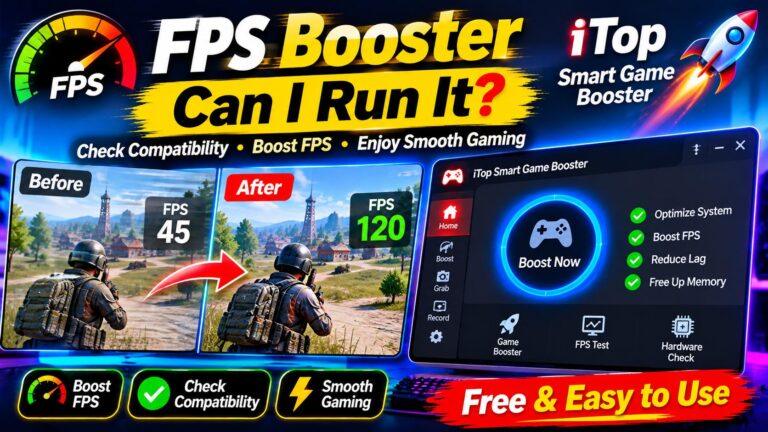
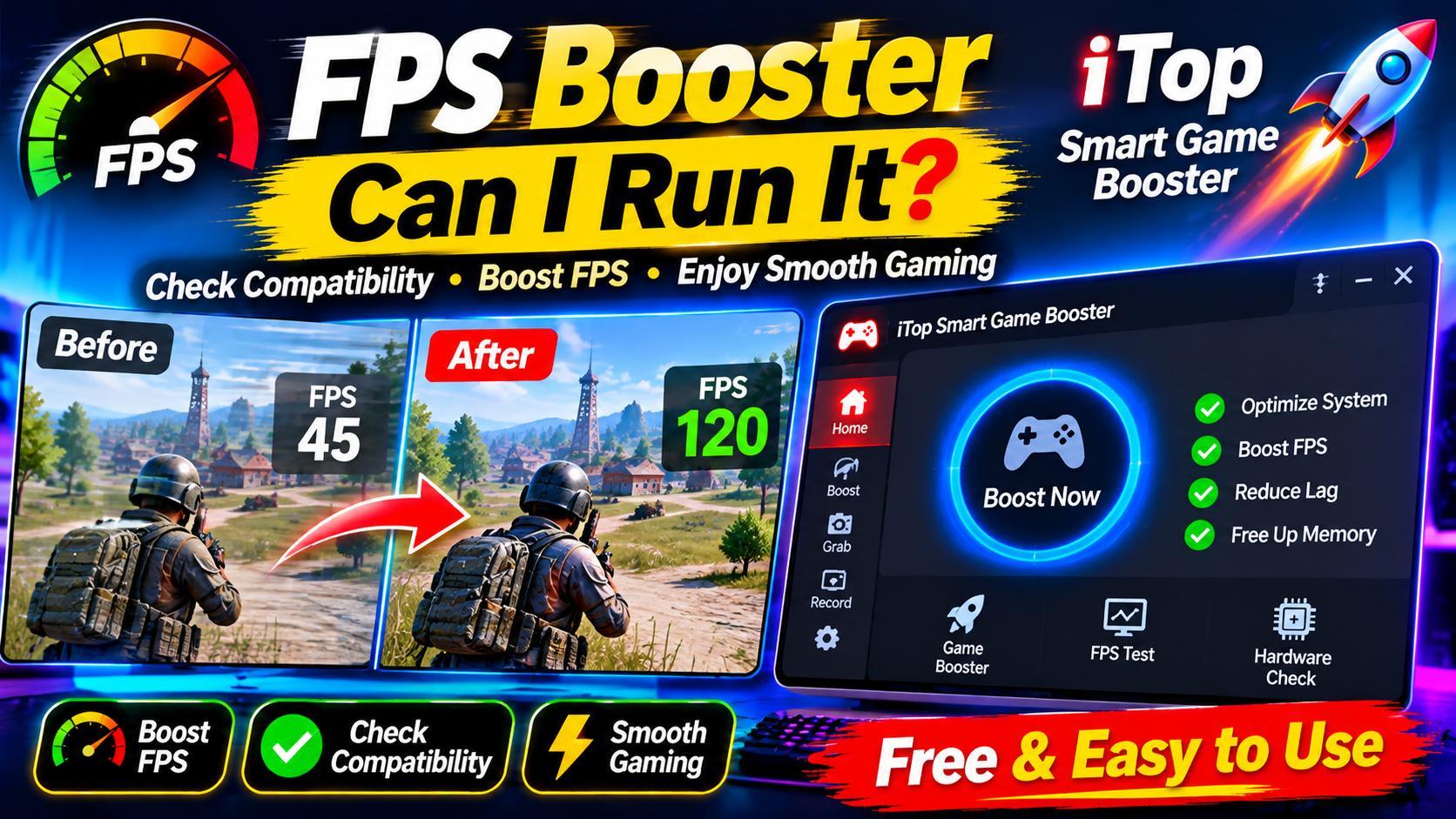
An FPS Booster is a software utility designed to help users explore performance-related settings and reduce unnecessary system activity during gameplay. Depending on the application, it may close selected background programs, manage certain processes, and provide access to useful optimization controls.
For example, imagine playing a demanding multiplayer game while several unnecessary applications are running. These programs may consume memory and processor resources that could otherwise remain available for gaming.
An FPS Booster can help identify selected applications that are safe to close before starting a game. Some utilities also provide performance monitoring, allowing users to observe how their computers behave during a gaming session.
Practical benefits of an FPS Booster
- Manage background activity:Close selected applications that are not required during gameplay.
- Reduce unnecessary resource usage:Free up some memory and processor capacity when background programs are consuming it.
- Simplify optimization:Access selected gaming settings through a centralized interface.
- Monitor system behaviour:Observe available CPU, GPU, RAM, and performance information.
- Improve gaming preparation:Apply suitable settings before launching demanding titles.
However, an FPS Booster cannot guarantee higher frame rates on every computer. If the graphics card is already operating at its limits, closing a few background applications may make little difference. The results depend on the hardware, running software, and the actual cause of poor performance.
Check Game Requirements Before Downloading Anything
Buying or downloading a demanding game without checking its system requirements can lead to disappointment. A title may require a particular graphics card, processor, amount of RAM, and compatible operating system.
Can I run it is the question many gamers ask before installing a new release. The Can You RUN It service from System Requirements Lab helps users answer this by comparing their computer specifications with a selected game’s published minimum and recommended requirements.
Why game compatibility checking is valuable
Avoid unnecessary purchases: Check whether your computer meets a game’s requirements before spending money on it.
Identify hardware limitations: Find out whether your processor, graphics card, or memory falls below the required specifications.
Plan upgrades more carefully: Understand which components may need attention when preparing for more demanding games.
Save download time: Avoid downloading large game files before discovering that your computer may not support them properly.
Compare different games: Explore titles that are better suited to your existing hardware.
Minimum Requirements Do Not Guarantee Smooth Gameplay
One common misunderstanding is assuming that passing a minimum requirement check guarantees excellent performance.
Minimum requirements generally indicate the basic hardware needed to run a game. Recommended requirements provide a stronger target for players who want a better experience.
For example, a computer might meet the minimum graphics requirements but struggle when the resolution is increased or demanding visual effects are enabled.
Actual performance also depends on graphics drivers, temperatures, game optimization, available memory, and background activity. A compatibility checker provides useful guidance, but it cannot replace testing a game on the actual computer.
A Smarter Way to Investigate Low FPS
Imagine that a newly installed game experiences frequent frame-rate drops. Start by checking whether the processor and graphics card meet the published requirements.
Next, review the applications running in the background. An FPS Booster may help manage selected programs that are consuming unnecessary resources.
After that, update compatible graphics drivers and adjust demanding visual settings. Lowering shadows, reducing certain effects, or changing the resolution may help when the graphics card is struggling.
Finally, compare frame rates during similar gameplay conditions. This helps determine whether the adjustments are making a meaningful difference.
Keep Performance Optimization Safe
Not every optimization recommendation should be applied automatically. Disabling unfamiliar Windows services or deleting important system components can create problems without improving gaming performance.
Choose trusted utilities that explain their settings and allow you to review recommended changes. Keep essential system processes active and download optimization software from official sources.
It is also useful to monitor CPU and GPU temperatures because overheating can reduce performance during longer gaming sessions.
Final Thoughts
Better gaming does not always require purchasing expensive computer components. An FPS Booster may help manage unnecessary background activity, while Can I run it compatibility checking helps determine whether your hardware meets a game’s published requirements.
Using both approaches gives PC gamers a more practical starting point for investigating performance problems. By understanding hardware limitations, managing system resources carefully, and testing actual gameplay, you can make smarter upgrade decisions and get more from your existing computer.
About the Author