Recording computer activities can solve many everyday problems. A student may want to revisit an important explanation, an employee might need to demonstrate a software issue, or a gamer may wish to save an impressive match. In each situation, a video recording provides information that screenshots and written instructions cannot always communicate.
The challenge is finding software that makes the recording process convenient without requiring complicated configuration. iTop Screen Recorder offers several tools for capturing desktop activities, recording audio, and preparing videos for different purposes.
Turn Online Lessons Into Videos You Can Revisit
Online education often involves demonstrations that move quickly between websites, applications, and presentation slides. Missing an important step can make it difficult to understand the next part of a lesson.
Using a screen recorder allows students and teachers to preserve these explanations for later viewing. Instead of relying entirely on handwritten notes, learners can review the actual demonstration and follow the instructor’s actions again.
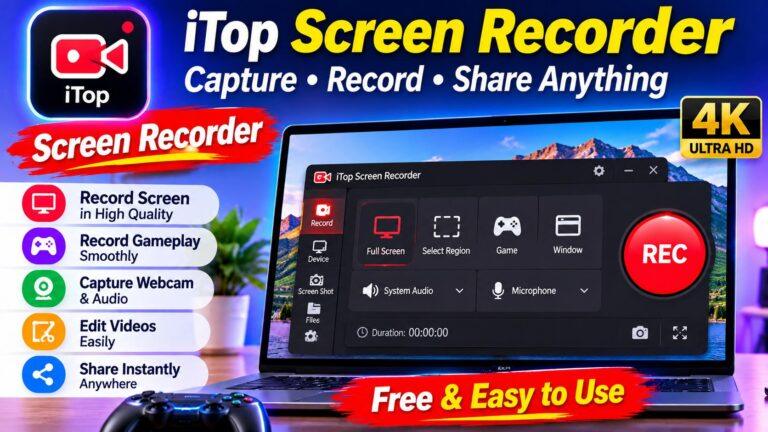
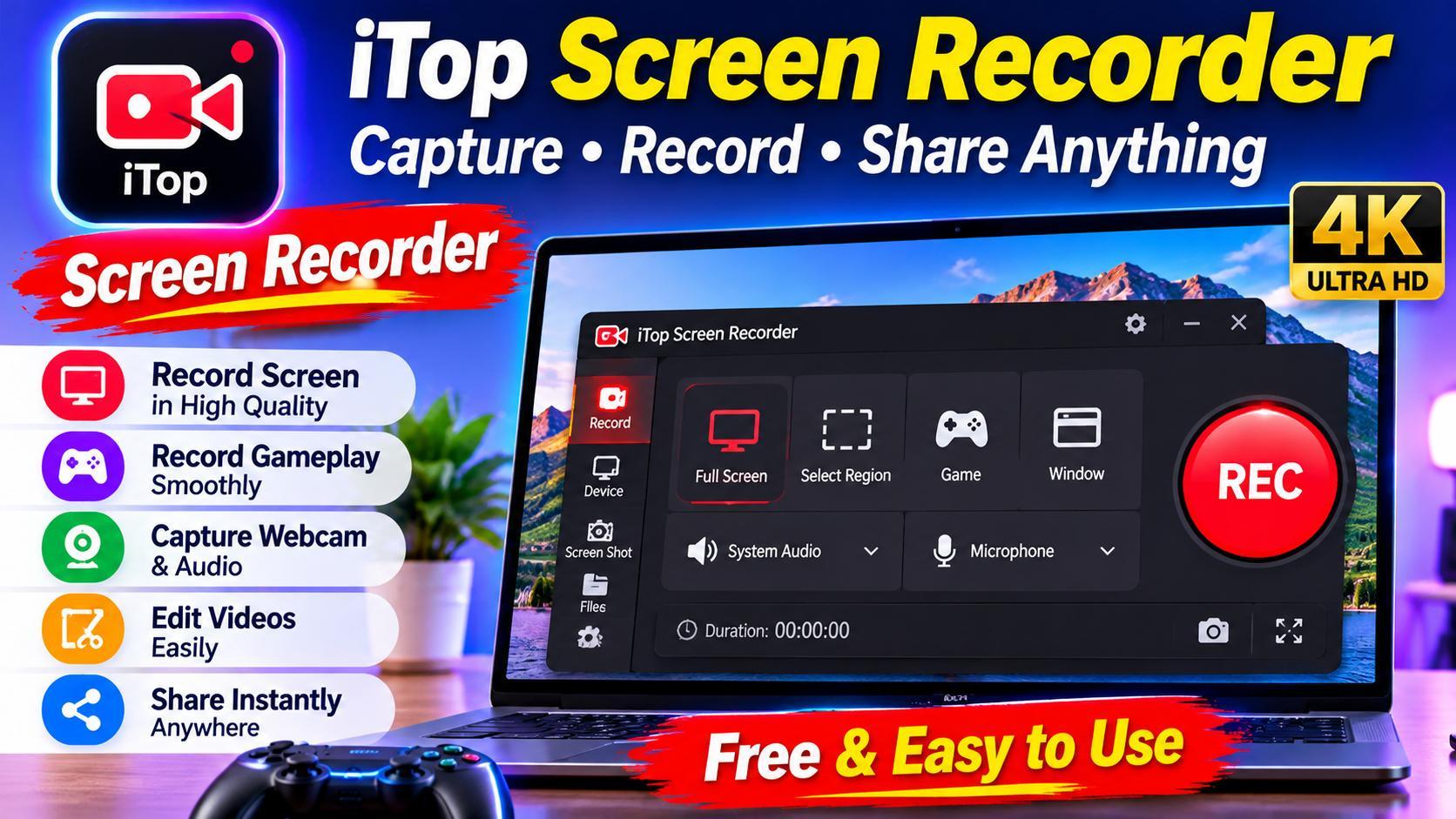
iTop Screen Recorder supports recording the entire desktop, a selected region, or an individual application window. Users can also enable microphone and speaker audio to capture explanations alongside the visual content. This provides several practical advantages:
- Students can review recorded demonstrations when preparing for examinations.
- Teachers can develop video lessons for students who cannot attend live sessions.
- Trainers can demonstrate software procedures through actual screen activity.
- Learners can pause and replay complicated steps whenever necessary.
- Educational creators can prepare visual explanations for online audiences.
For better recordings, select the relevant application window and test the microphone before beginning a complete lesson.
Make Software Instructions Easier to Understand
Explaining a technical problem through messages can sometimes become confusing. A person providing support may need to describe several settings, buttons, and menus before the other user understands the solution.
A recorded demonstration makes this process more direct. You can show the exact sequence of actions while explaining what each step accomplishes.
iTop Screen Recorder includes mouse recording options with highlighting and click animations. These visual effects help viewers identify where the cursor moves and which controls are selected. Its floating toolbar also provides recording controls and drawing options during supported recording sessions.
Technical support: Demonstrate solutions to common computer problems.
Employee training: Show new team members how to operate particular applications.
Product demonstrations: Explain software features through practical examples.
Online tutorials: Create step-by-step instructions for websites, computer programs, and digital services.
Give Gameplay Recordings a More Personal Style
Gaming content has different recording requirements from educational videos. Players may want to capture fast-moving scenes, microphone commentary, computer audio, and occasionally their own webcam footage.
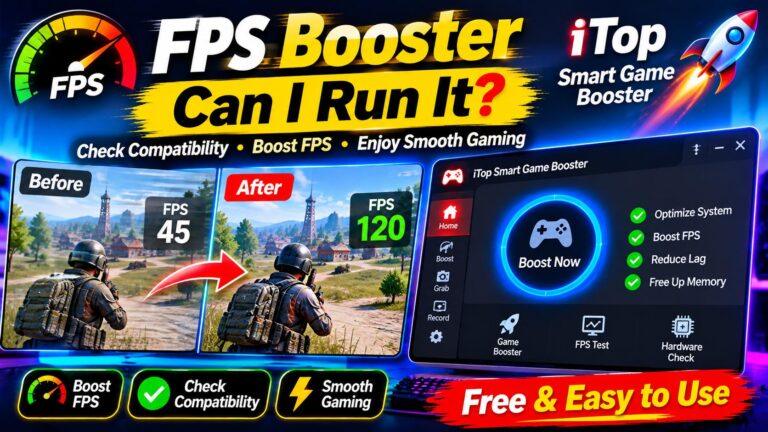
The Game recording mode in iTop Screen Recorder is designed for capturing gameplay. Its available options include speaker audio, microphone input, webcam, HUD, and Boost controls. The official manual also describes an FPS display during gameplay recording.
This makes the software interesting for gaming enthusiasts who want to save important moments or prepare walkthrough videos.
A webcam overlay can add a personal element to gameplay content, while microphone recording allows players to explain their decisions during a match.
Recording quality should be selected according to the computer’s capabilities. High-resolution recording requires additional storage and processing resources, so testing the settings before a longer session is sensible.
Manage More Than Just Desktop Video
Another useful aspect of iTop Screen Recorder is that it includes additional capture options.
Users can record webcam footage independently, capture audio without recording the desktop, and take screenshots of important information. The software also provides Quick Editor and Advanced Editor options for working with recorded and existing videos.
These options can be useful when a project requires several types of media.
For example, someone preparing an online presentation might record their desktop demonstration, capture a separate voice recording, and edit the resulting footage before sharing it.
The application also supports multiple video and audio output formats. Available recording settings include video size, frame rate, bitrate, and quality, giving users additional control over exported files.
Prepare Your Recording Space Before Starting
Good recording quality depends on more than the software itself. Unnecessary desktop notifications, background applications, and poorly configured audio settings can affect the final video.
Before pressing the recording button, close unrelated windows and select the appropriate capture area. Check whether microphone and speaker audio are enabled, and position the webcam overlay where it will not cover important information.
Make a short test recording and play it back. This helps identify missing sound, incorrect screen capture, or other problems before you spend time producing a longer video.
Also ensure that your computer has sufficient storage for the recording. Keep a separate copy of important footage before editing or deleting original files.
Final Thoughts
A useful recording application should support the type of content you regularly create. Students may need it for lessons, businesses can use it for training, and gamers can capture memorable gameplay moments.
iTop Screen Recorder brings desktop capture, webcam recording, audio controls, gameplay recording, screenshots, and video editing features together in one Windows application. Its range of options makes it worth exploring for different recording projects.
Choosing the right screen recorder ultimately depends on your workflow. With suitable settings and a little preparation, you can turn everyday computer activities into informative videos that are easier to review, edit, and share.
About the Author